YouTube Shorts size: dimensions, aspect ratio and safe zones
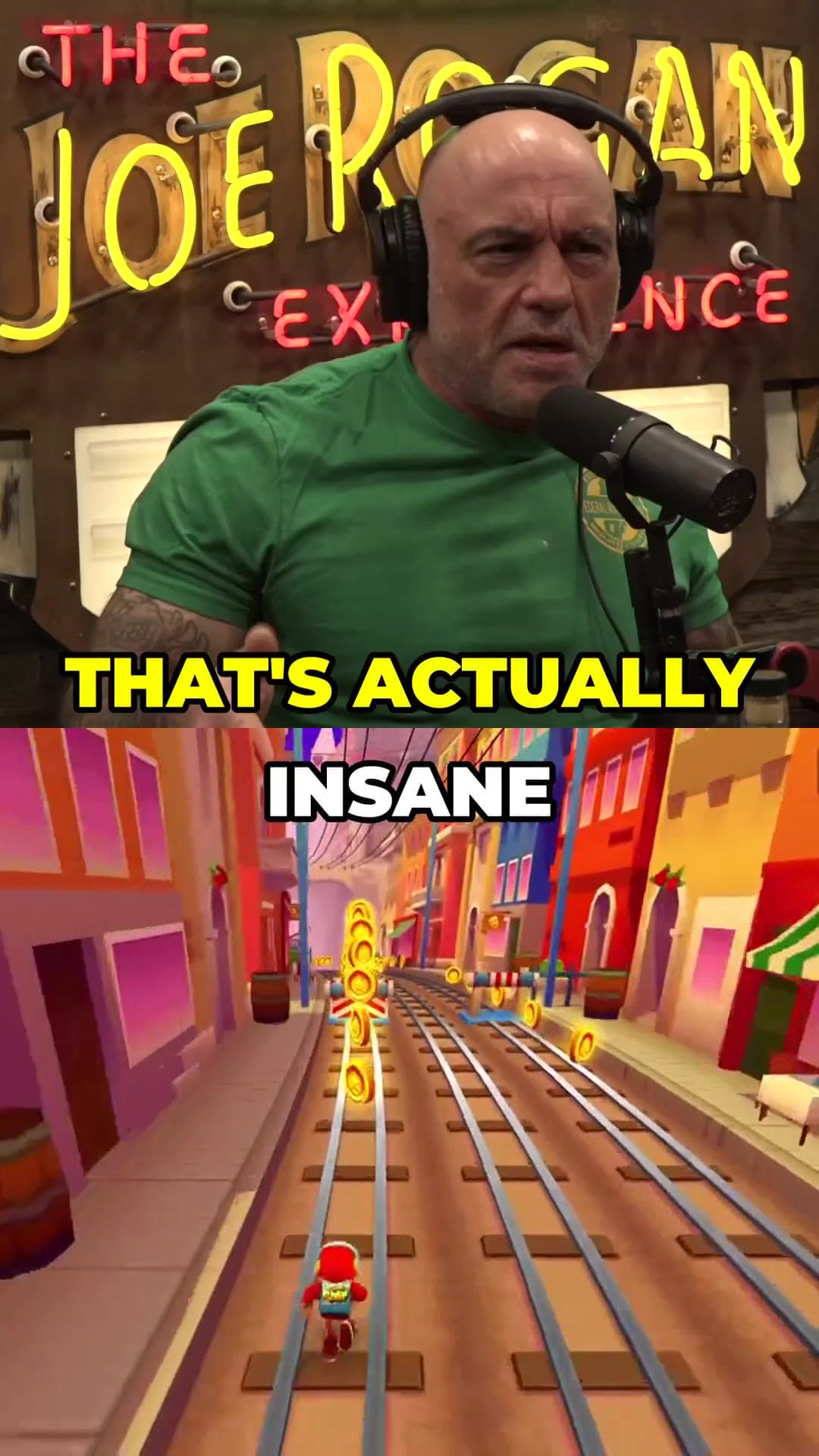
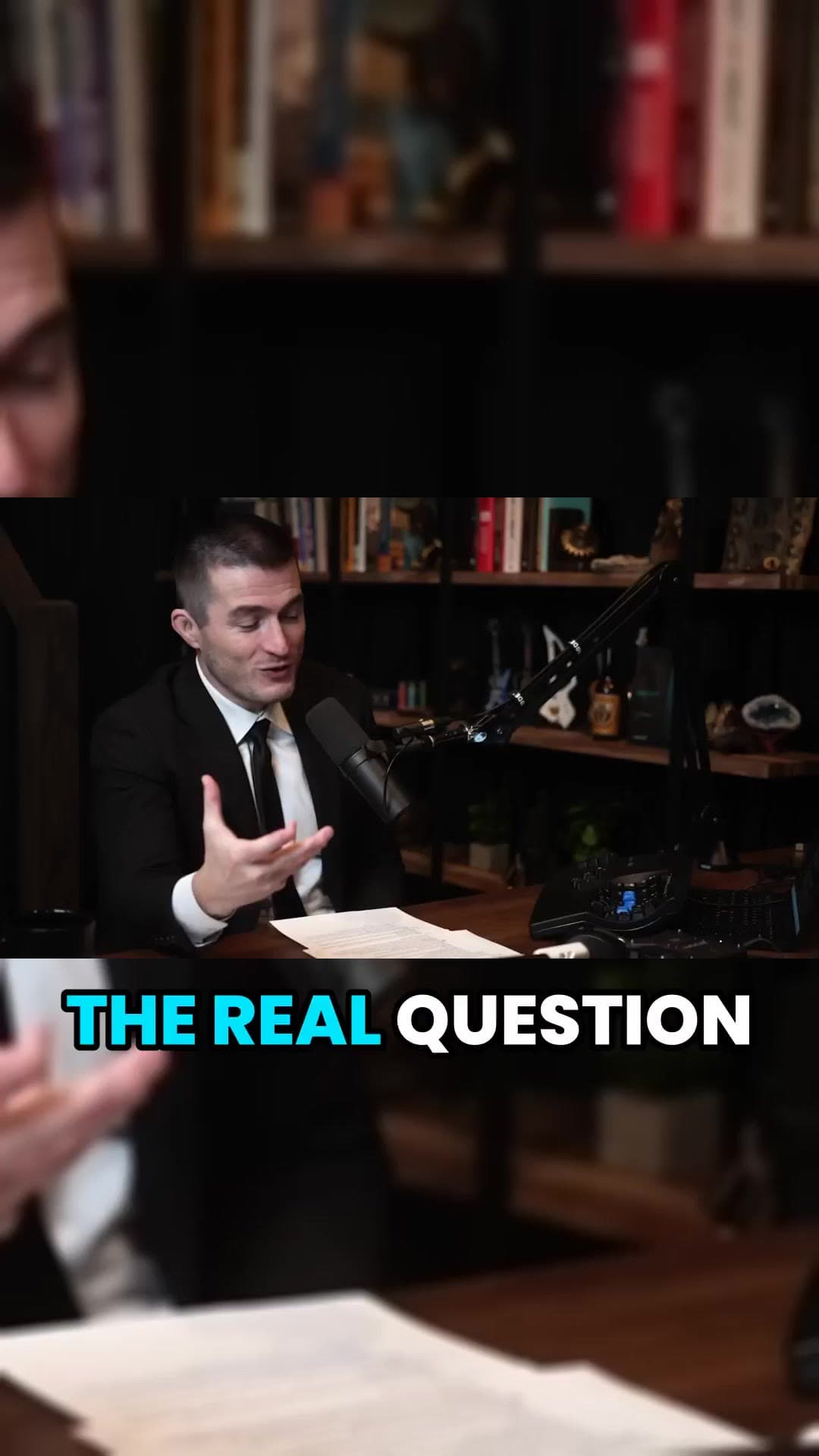
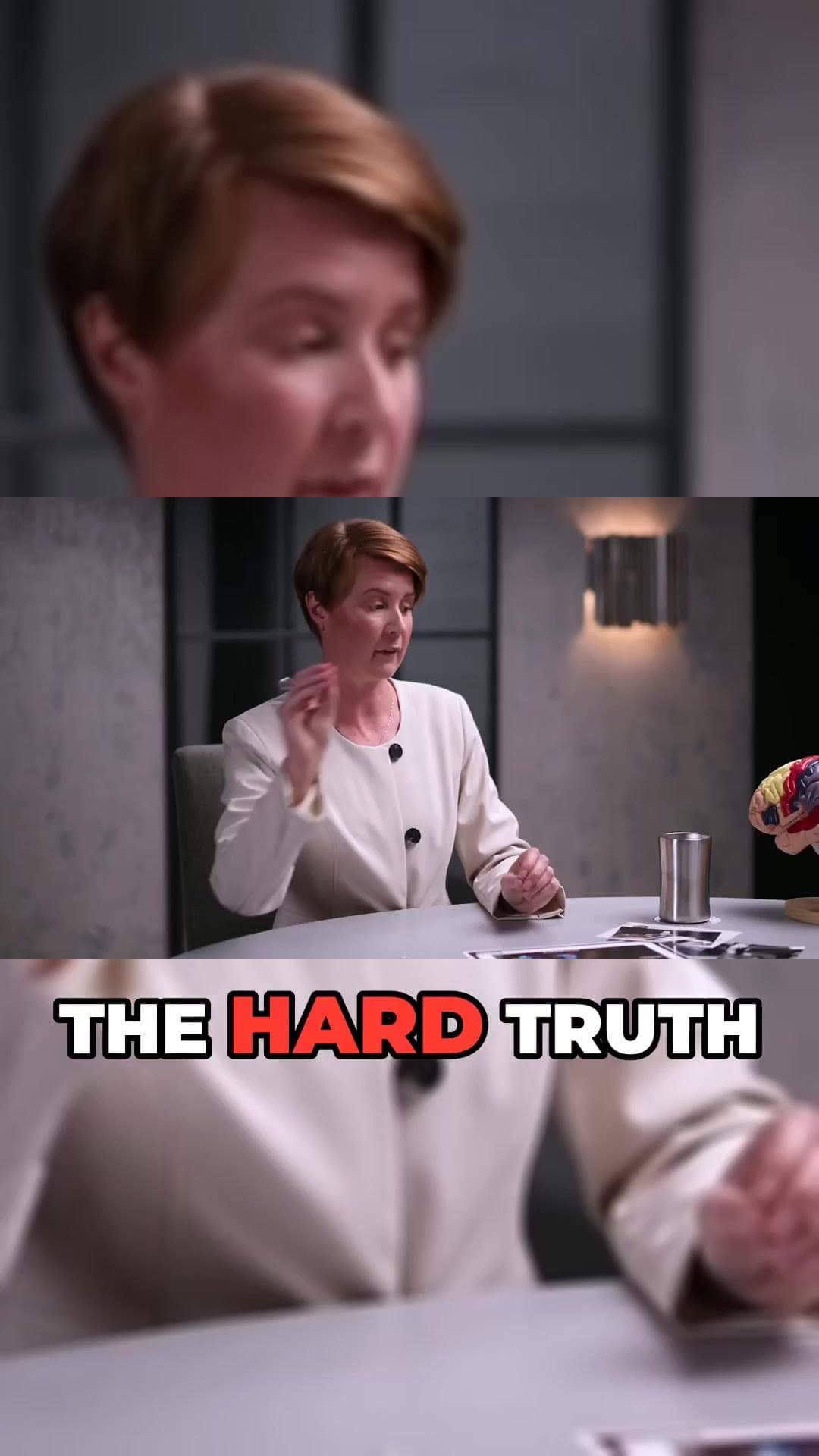
The recommended YouTube Shorts size is 1080×1920 pixels, a 9:16 vertical aspect ratio. 720×1280 has the same shape and also displays full screen. Square 1:1 videos are accepted as Shorts too, but they leave empty space on a phone.
Below are the exact specs for Shorts, TikTok and Instagram Reels, where to keep text so the app buttons don't cover it, and how to turn a 16:9 video into 9:16 without squashing it.
No card to sign upLook around the studioRuns in the browser
How it works
01
Set a 9:16 canvas
1080×1920 (or 720×1280). Never stretch a 16:9 frame; crop it and follow the subject instead.
02
Respect the safe zone
Keep faces, captions and text inside the middle of the frame, away from the bottom fifth and the right edge.
03
Export MP4 (H.264)
MP4 with H.264 video and AAC audio uploads cleanly to YouTube, TikTok and Instagram.
Shorts vs TikTok vs Reels specs
Spec
YouTube Shorts
TikTok
Instagram Reels
Aspect ratio
9:16 (1:1 accepted)
9:16
9:16
Recommended size
1080×1920
1080×1920
1080×1920
Max length
3 minutes
Up to 10 minutes for most uploads
3 minutes
Format
MP4 / MOV
MP4 / MOV
MP4 / MOV
Covered area
Bottom and right edge
Bottom and right edge
Bottom and right edge
What you get
Resolution
1080×1920 recommended; 720×1280 is fine on phones.
Aspect ratio
9:16 vertical. 1:1 is accepted but shows bars.
Length
Up to 3 minutes for a Short.
Format
MP4, H.264 video, AAC audio, 30 or 60 fps.
Safe zone
Bottom ~20% and right ~15% are covered by buttons and the caption bar.
Thumbnail
Pick a frame in the app; text on it should sit in the centre.
How to convert a 16:9 video to Shorts size
A horizontal 1920×1080 frame is wider than a Short, so you have to crop, not resize. Scaling the whole frame into 9:16 leaves black bars above and below; stretching it distorts faces. The usual fix is a 9:16 window that follows the speaker, cutting between people when two are talking.
ClipAtelier does that reframing automatically on every clip it cuts: it tracks the person on screen, keeps them centred and burns captions in the safe zone. If you prefer the original framing, you can export at 16:9 instead.
Where to put captions and text
On all three apps the bottom of the screen holds the title, the audio label and the caption bar, and the right edge holds like, comment and share. Put captions slightly below the middle of the frame and keep logos away from corners. A quick test: look at the clip in the app's preview before publishing.
Does resolution affect reach?
Not directly — the feed ranks on watch behaviour. Resolution matters only when it is low enough to look blurry. 720×1280 encodes faster and looks sharp on a phone; 1080×1920 is the safe choice for footage with fine text or detail.
1080 pixels wide by 1920 pixels tall is the recommended size. Any 9:16 size such as 720×1280 also fills the screen.
Is 9:16 the same as 1080×1920?
9:16 is the shape; 1080×1920 is one size with that shape. 720×1280 and 2160×3840 are also 9:16.
Can a horizontal video be a Short?
YouTube treats vertical and square uploads up to three minutes as Shorts. A 16:9 video should be cropped to 9:16 first or it will not appear in the Shorts feed as a Short.
What size does ClipAtelier export?
720×1280 vertical MP4 with H.264 video and no watermark, or 16:9 if you keep the original framing.
Your next Short is already inside your last video.
No card to look around. Clips start on a paid plan.