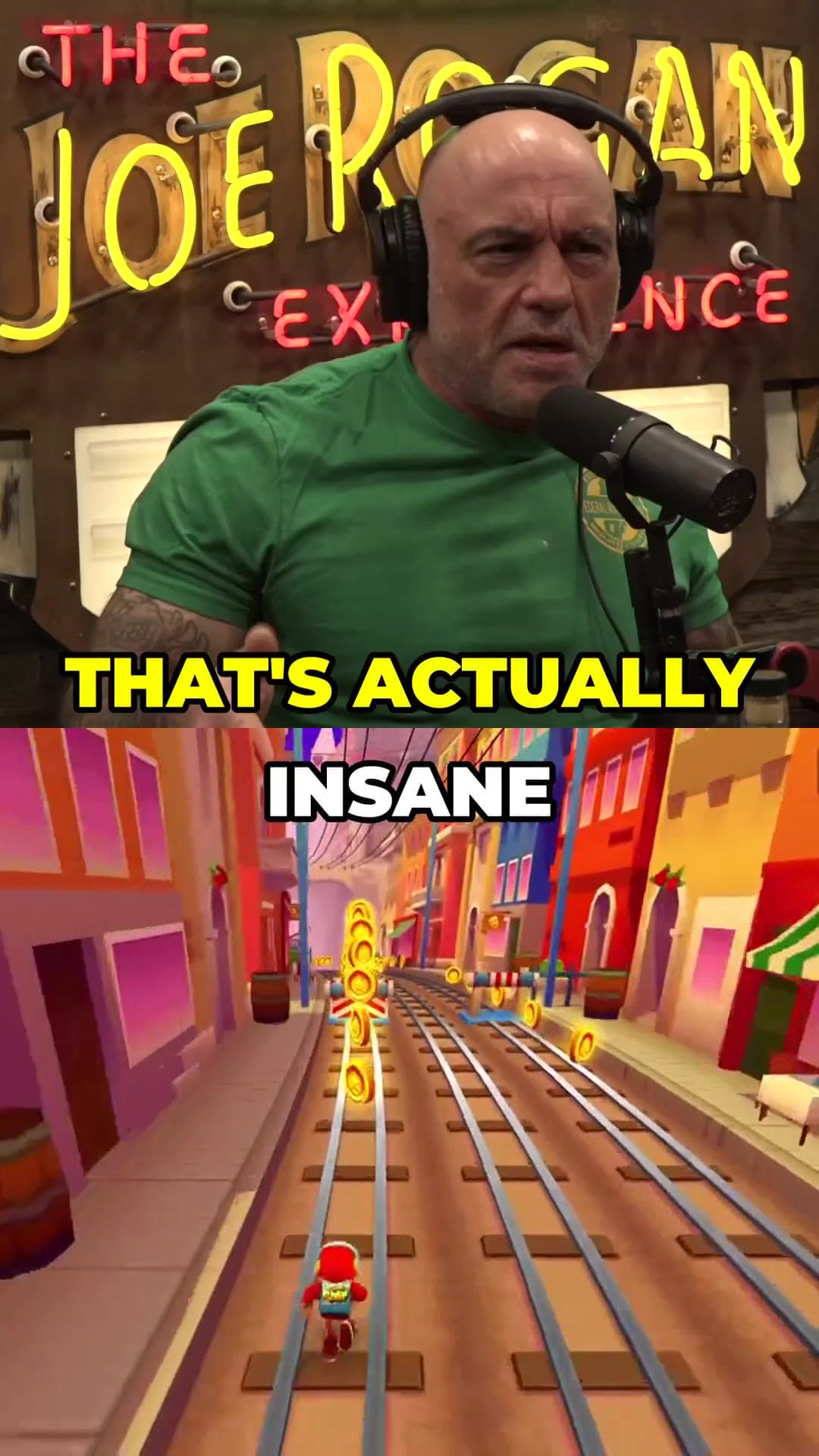
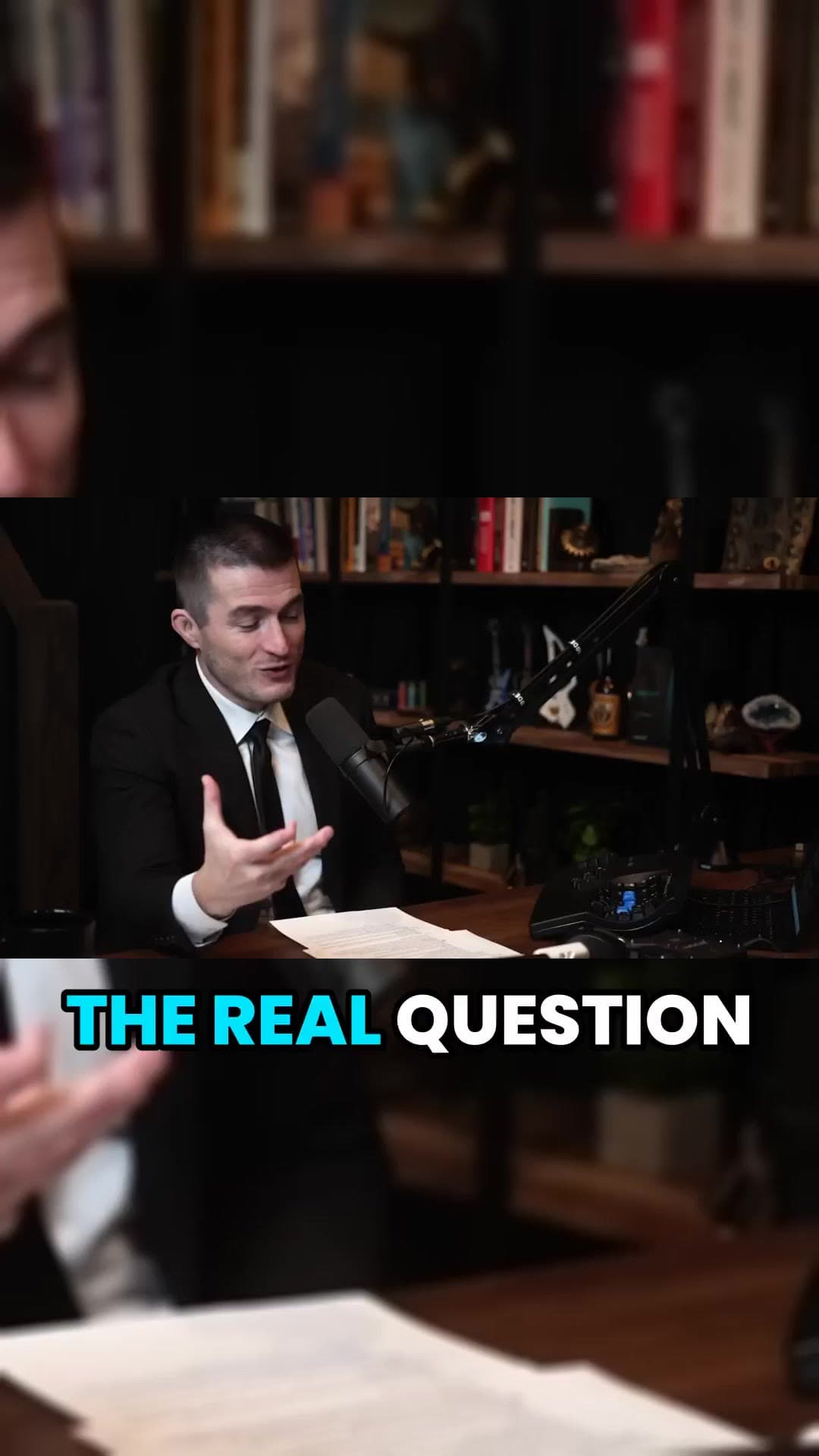
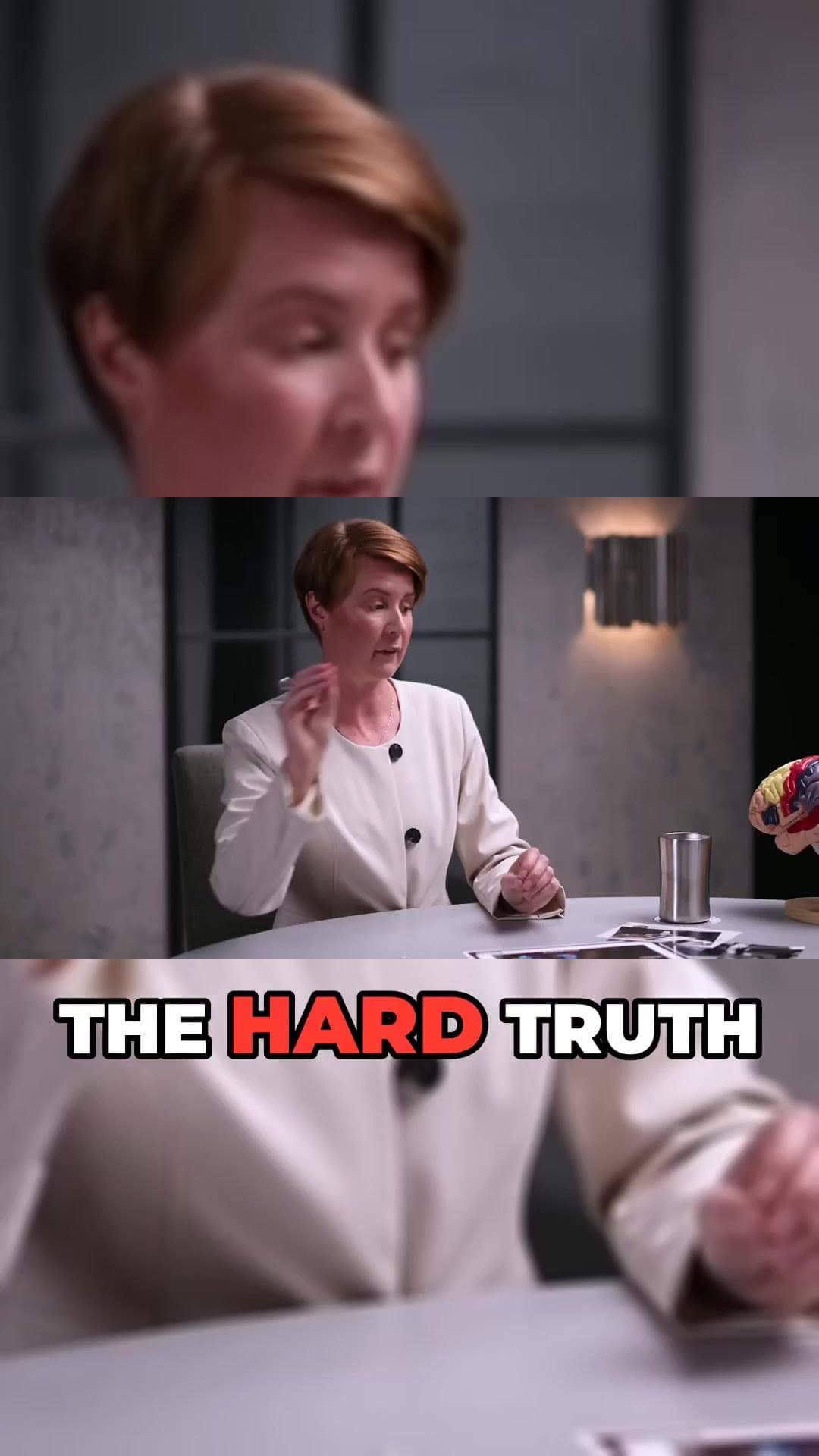
Most Shorts start playing without sound, so captions decide whether people stay. There are two kinds: closed captions that viewers can turn on, and burned-in captions that are part of the video and always visible.
Burned-in, word-by-word captions are the standard on Shorts, TikTok and Reels. Here are three ways to add them, from free and manual to fully automatic.
No card to sign upLook around the studioRuns in the browser
How it works
01
Get a transcript
Use auto-captions from YouTube, your editor or an AI clipper as the starting text.
02
Fix names and numbers
These are the words transcription gets wrong most often. Fix them before you burn them in.
03
Style and place
Large, high-contrast text slightly below centre, away from the app buttons at the bottom.
What you get
Word-by-word timing
Text that appears as it is spoken is easier to follow than full sentences.
Highlight the current word
Karaoke-style highlights pull the eye along with the voice.
2–4 words per line
Short lines read in a glance on a small screen.
Contrast first
White or yellow with a dark outline stays readable over any footage.
Safe placement
Keep captions out of the bottom fifth where the title and buttons sit.
Same language as speech
Translated captions help reach, but the original language converts best.
Option 1: YouTube's built-in captions
In YouTube Studio open the Short, go to Subtitles and use the automatic captions or upload a file. They are free and searchable, but viewers must turn them on and they don't look like the captions people expect in the Shorts feed.
Option 2: burn captions in an editor
CapCut, Premiere and similar editors generate captions you can style and burn into the video. You get full control over fonts and animation, at the cost of correcting and timing each clip by hand — usually 10 to 20 minutes per Short.
Option 3: automatic captions while clipping
An AI clipper can caption while it cuts. ClipAtelier transcribes the speech, times captions word by word, highlights the current word and burns them in on every clip, in 19 languages. Pick a style once and every clip in the batch matches; edit any word in the studio before export.