ClipAtelier

Schedule Shorts

Schedule YouTube Shorts so one long video feeds a whole week

Clipping is only half the job. If you drop eight Shorts the same afternoon, they compete with each other. ClipAtelier Autopilot (Pro) queues finished clips and publishes them on a schedule to the YouTube and TikTok accounts you connect.

Generate the batch once, approve the keepers, then spread them across days so each clip gets its own window in the feed.

No card to sign upLook around the studioRuns in the browser
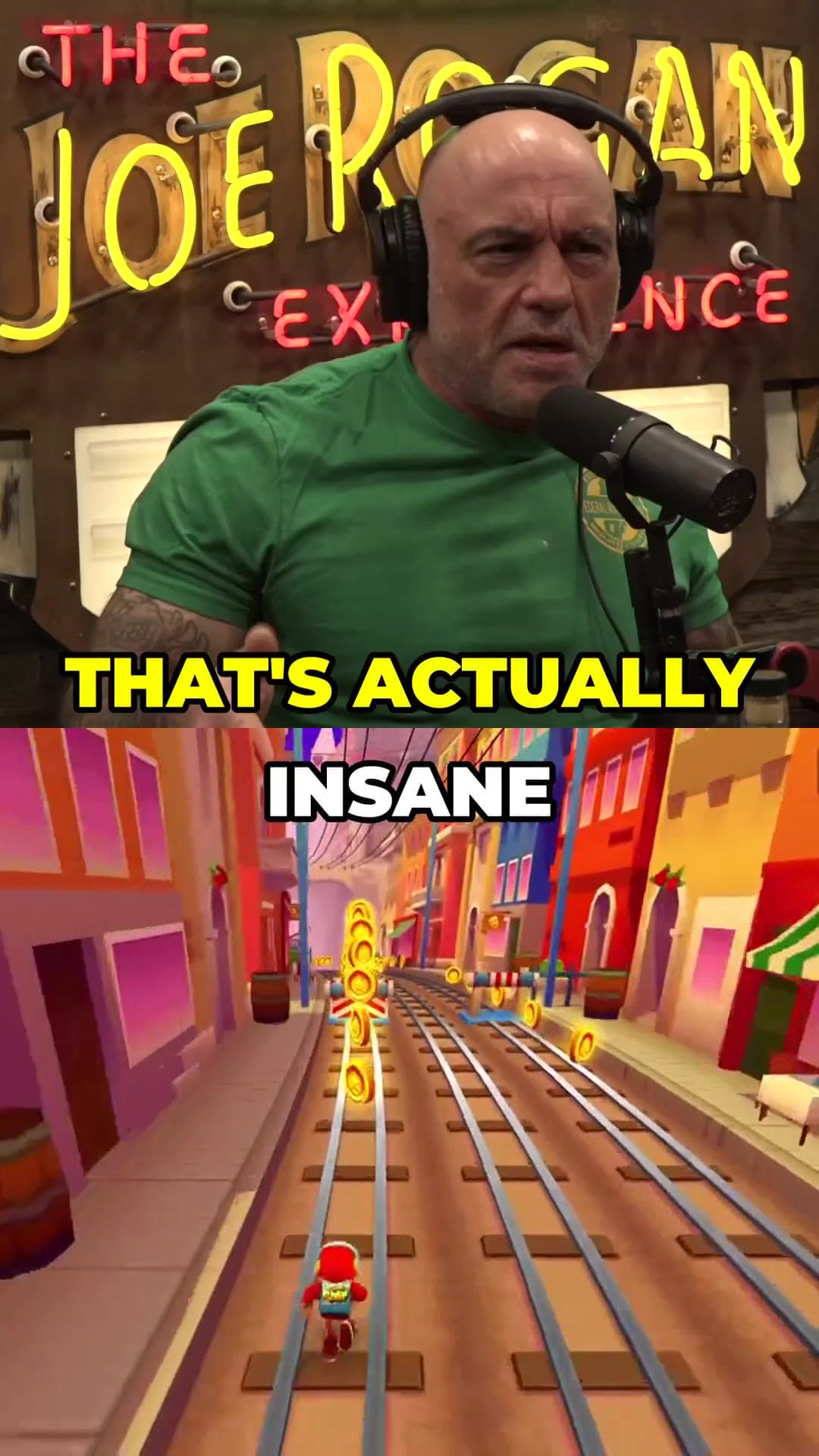
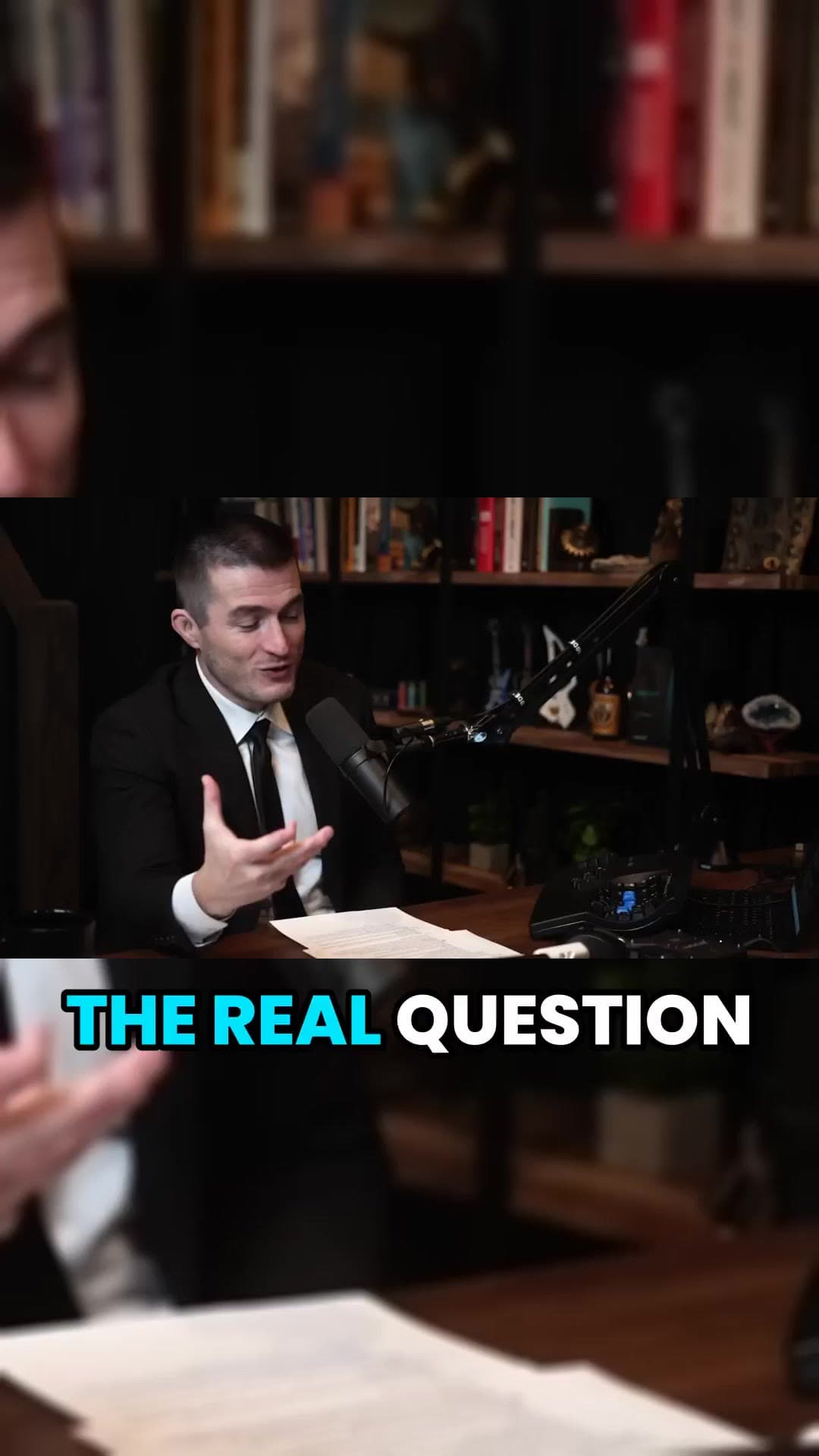
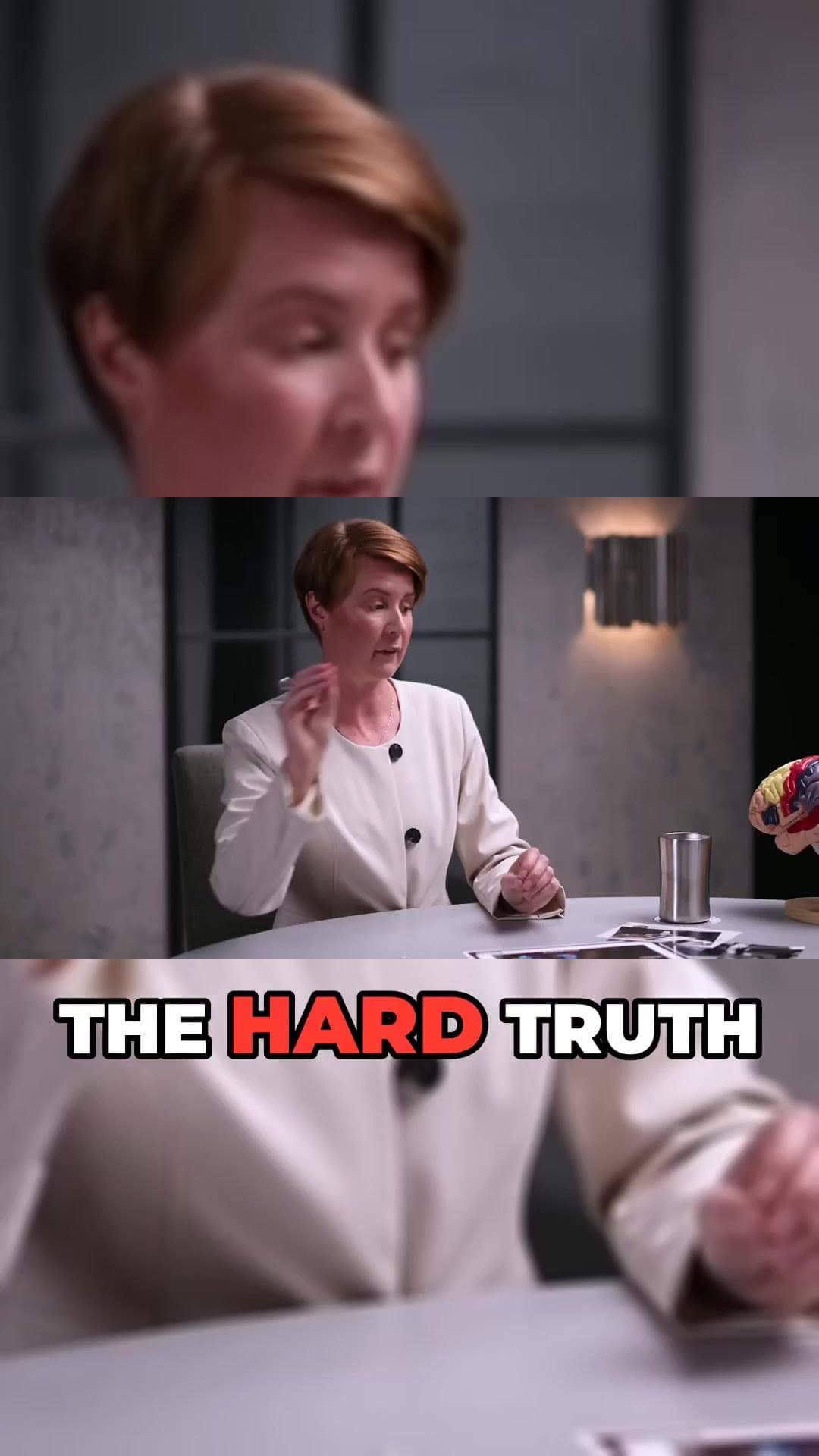
Vertical Short example frame from a long interviewCaptioned 9:16 clip example from a podcastAI-reframed talking-head Short example

How it works

  1. 01

    Clip the source

    Paste a YouTube link or upload a file, then approve the ranked Shorts you want to keep.

  2. 02

    Connect channels

    On Pro, connect the YouTube and TikTok accounts you post from inside the studio.

  3. 03

    Queue Autopilot

    Set the posting rhythm and let Autopilot publish on schedule while you move to the next long video.

What you get

  • YouTube + TikTok

    Schedule to both from one clip batch on Pro.

  • Steady rhythm

    One clip a day usually beats eight at once.

  • Titles ready

    AI title options travel with each scheduled post.

  • Channel Feeds

    Watch source channels and clip new uploads as they land (Pro).

  • Bulk still available

    Need to ship a batch now? Publish immediately instead of scheduling.

  • No watermark

    Scheduled exports stay clean.

Why schedule Shorts instead of posting everything immediately?

Algorithms and audiences both prefer consistency. Spreading clips from one podcast or stream across several days keeps the channel active without making each Short fight the others for the same viewers on day one.

Autopilot is for that cadence. You still review clips before they enter the queue — scheduling is not the same as unsupervised posting of unreviewed cuts.

Example clip frames

  • Vertical Short example frame from a long interview
  • Captioned 9:16 clip example from a podcast
  • AI-reframed talking-head Short example

Frequently asked questions

  • Is Autopilot on every plan?

    Scheduling and Autopilot are Pro features. Free and Starter focus on creating and downloading clips.

  • Can I edit a clip after it is queued?

    Review and restyle before you schedule. Once a post is live on the platform, edit it there if you need a change.

  • Can I clip any YouTube video?

    No. Only clip videos you own or have permission to use — for example your own uploads, creators who allow clipping (clipping programs), or licensed content. You confirm this when you create an account, and you are responsible for the clips you post.

  • Is it free?

    You can create a free account with no card and look around the studio. Creating clips is on a paid plan, and you can try it for 3 days for $1. Exports have no watermark.

Your next Short is already inside your last video.

No card to look around. Clips start on a paid plan.

Start creating clips