
ClipAtelier

Zoom / meeting clips

Turn Zoom recordings into Shorts your audience can finish

A Zoom webinar or customer call is full of short, useful answers that never leave the recording. ClipAtelier uploads the file on a paid plan, finds the moments that stand alone, burns captions and exports vertical clips for Shorts, Reels or LinkedIn.

One complete answer beats a five-minute wrap-up. Review the ranked list, keep the clips that teach one thing, and schedule them so the webinar keeps working after the live session ends.

No card to sign upLook around the studioRuns in the browser
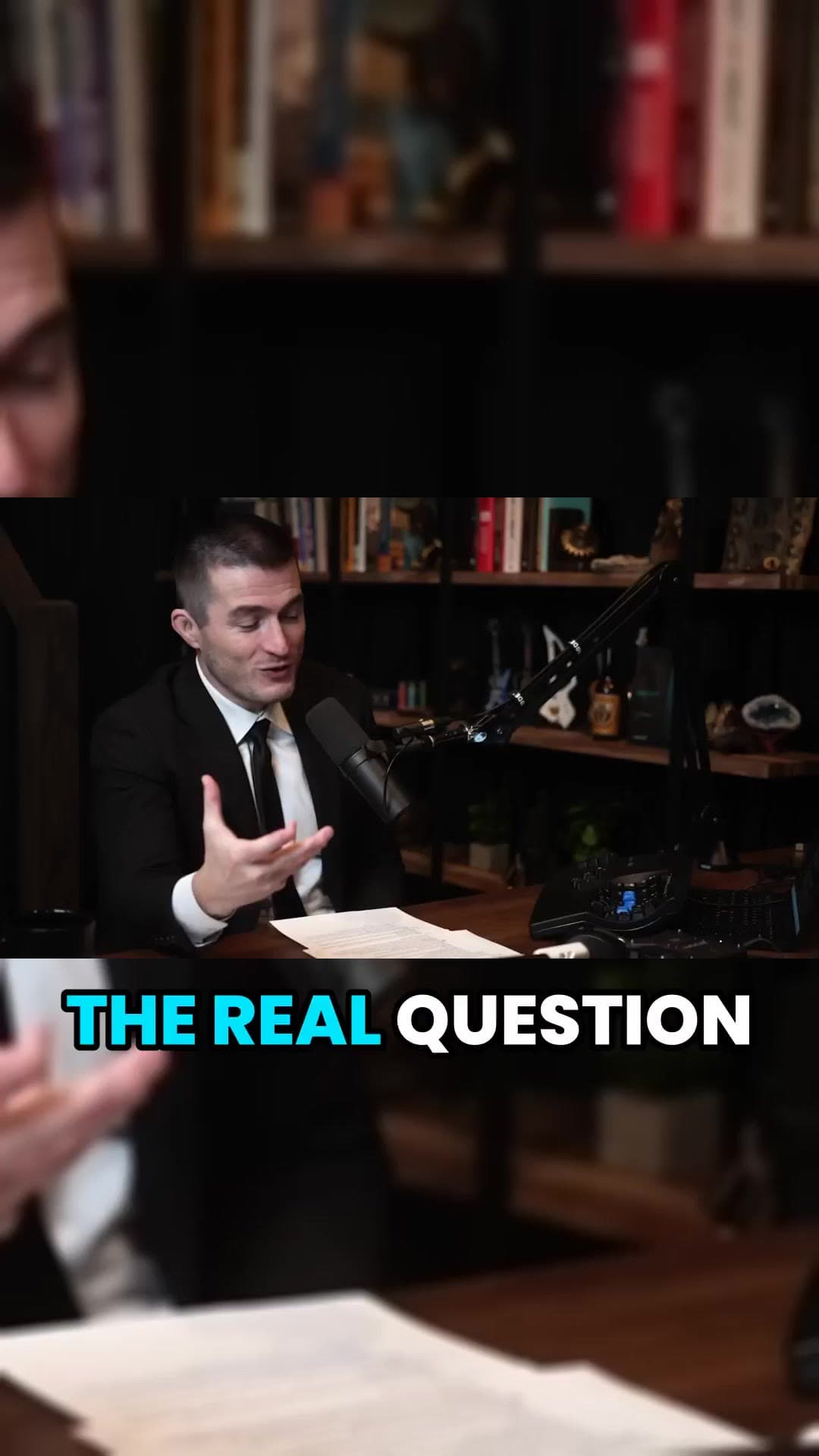
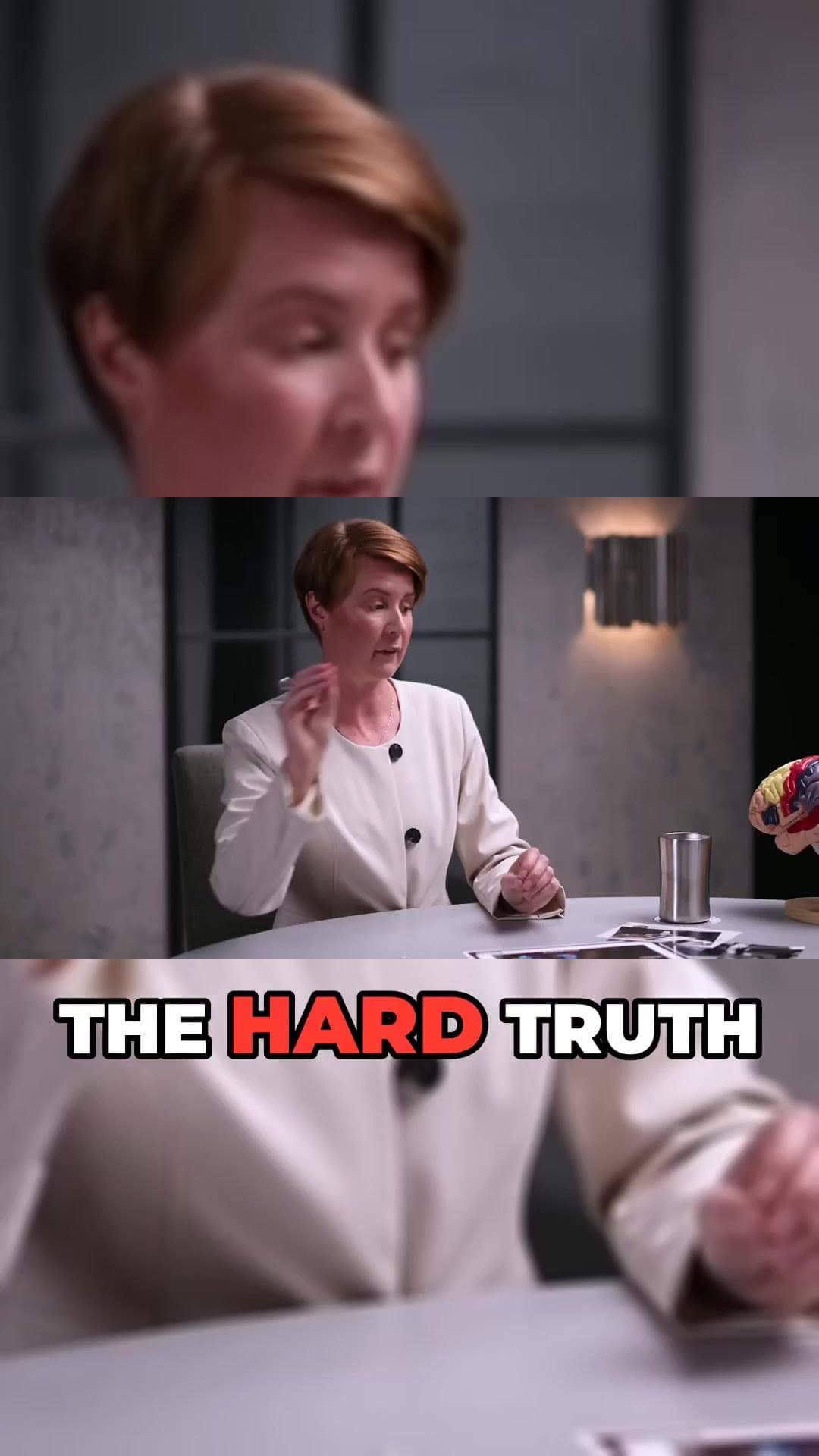
Vertical Short example frame from a long interviewCaptioned 9:16 clip example from a podcastAI-reframed talking-head Short example

How it works

  1. 01

    Choose the source window

    Pick a long video you own (or have permission to clip). For multi-hour streams, use the range picker so you only process the useful part.

  2. 02

    Generate ranked clips

    ClipAtelier cuts on Most Replayed peaks when available, otherwise ranks the transcript for hooks and payoffs, then burns captions.

  3. 03

    Ship a batch the same day

    Approve the best 3–6 clips, tweak titles, and download or schedule them so Shorts go out while the long video is still fresh.

What you get

  • Answer-sized cuts

    Built for spoken recordings where one reply is the whole clip.

  • Word-timed captions

    Names and numbers are easy to fix in preview before you post.

  • 9:16 or keep wide

    Vertical for Shorts and Reels, or 16:9 when you want the gallery view.

  • Title drafts

    AI titles and hashtags so each clip is ready to paste.

  • Multi-speaker tip

    Crop follows the useful line; trim cross-talk in the editor if needed.

  • Autopilot on Pro

    Queue clips across the week instead of posting the whole webinar at once.

Which Zoom moments become Shorts?

Look for a complete answer with a clear start and end: a framework, a number, a story, a myth-bust. Skip the logistics, the 'can you hear me' open and the Q&A pile-ons that need the slide deck to make sense.

If the recording is mostly screen share, keep the crop on the speaker when the point is verbal, or keep 16:9 when the slide is the product.

Example clip frames

  • Vertical Short example frame from a long interview
  • Captioned 9:16 clip example from a podcast
  • AI-reframed talking-head Short example

Frequently asked questions

  • What file should I upload?

    MP4, MOV or MKV from Zoom's cloud or local recording works on a paid plan. YouTube links also work if you published the webinar there.

  • Is this only for webinars?

    No. Coaching calls, product demos, town halls and course sessions work the same way — as long as you have the rights to clip and post them.

  • Can I clip any YouTube video?

    No. Only clip videos you own or have permission to use — for example your own uploads, creators who allow clipping (clipping programs), or licensed content. You confirm this when you create an account, and you are responsible for the clips you post.

  • Is it free?

    You can create a free account with no card and look around the studio. Creating clips is on a paid plan, and you can try it for 3 days for $1. Exports have no watermark.

Your next Short is already inside your last video.

No card to look around. Clips start on a paid plan.

Start creating clips